As I promised you that I am going to start android lessons soon here we are. For viewing a website on a separate android app ‘Webview’ intent is required. This is the basic version of ‘webview App’; once you learn this, I would be teaching you its advance method. Now, tighten your seat belt, and get ready for landing in a new world.
Coming to the main process, we are viewing the android version of your website by ‘webview app’. It works similar to your android browser. WebView also allows you to use HTML string, CSS and JavaScript design to your application. WebView embed website into your android application. WebView uses the WebKit rendering engine to display web pages and includes methods to navigate forward and backward through a history, zoom in and out, perform text searches and more.
Note: If you have any doubts, please contact me.
I recommend you to see this before proceeding forward
Requirements:
- Android Studio
- Access to TechnSparkz
- Basics of Java
- A working brain 😛
If you satisfy all the requirements above, you are ready to go.
Step 1: Start a new android project. If you don’t know how to, click here.
Step 2: Now replace your “androidmanifest.xml” with the code below.
<?xml version="1.0" encoding="utf-8"?>
<manifest xmlns:android="http://schemas.android.com/apk/res/android"
    package="technosparkz.technosparkz" >

    <application
        android:allowBackup="true"
        android:icon="@mipmap/ic_launcher"
        android:label="@string/app_name"
        android:supportsRtl="true"
        android:theme="@style/AppTheme" >
        <activity
            android:name=".MainActivity"
            android:label="@string/app_name"
            android:theme="@style/AppTheme.NoActionBar" >
            <intent-filter>
                <action android:name="android.intent.action.MAIN" />

                <category android:name="android.intent.category.LAUNCHER" />
            </intent-filter>
        </activity>
    </application>
<uses-permission android:name="android.permission.INTERNET"/>
</manifest>
Step 3: Copy from line 3 onwards and replace the same in your ‘MainActivity.java’. Wherever you see the ‘technosparkz.tech.blog’ change it to URL of your website.
package technosparkz.technosparkz;

import android.os.Bundle;
import android.support.design.widget.FloatingActionButton;
import android.support.design.widget.Snackbar;
import android.support.v7.app.AppCompatActivity;
import android.support.v7.widget.Toolbar;
import android.view.View;
import android.view.Menu;
import android.view.MenuItem;
import android.webkit.WebSettings;
import android.webkit.WebView;
import android.webkit.WebViewClient;

public class MainActivity extends AppCompatActivity {

    private WebView mWebView;

    @Override
    protected void onCreate(Bundle savedInstanceState) {
        super.onCreate(savedInstanceState);
        setContentView(R.layout.activity_main);
        mWebView = (WebView) findViewById(R.id.activity_main_webview);
        WebSettings webSettings = mWebView.getSettings();
        webSettings.setJavaScriptEnabled(true);
        mWebView.loadUrl("http://technosparkz.tech.blog");
        mWebView.setWebViewClient(new MyAppWebViewClient(){
         @Override
          public void onPageFinished(WebView view, String url){
          //hide loading image
          findViewById(R.id.splashLoading1).setVisibility(View.GONE);
           //show webview
          findViewById(R.id.activity_main_webview).setVisibility(View.VISIBLE);
          }}


        );

        Toolbar toolbar = (Toolbar) findViewById(R.id.toolbar);
        setSupportActionBar(toolbar);


    }
    @Override
    public void onBackPressed (){
        if(mWebView.canGoBack()){
            mWebView.goBack();
        }else {
            super.onBackPressed();
        }


    }


    private class MyAppWebViewClient extends WebViewClient{
    }
}
Step 4: Copy the below code and paste it into ‘content_main.xml’ located in the layout folder.(If not there, create one, or paste it into ‘activity_main.xml’)
<?xml version="1.0" encoding="utf-8"?>
<RelativeLayout xmlns:android="http://schemas.android.com/apk/res/android"
    xmlns:tools="http://schemas.android.com/tools"
    xmlns:app="http://schemas.android.com/apk/res-auto" android:layout_width="match_parent"
    android:layout_height="match_parent"
    app:layout_behavior="@string/appbar_scrolling_view_behavior"
    tools:showIn="@layout/activity_main" tools:context=".MainActivity"    >

    <ImageView android:id="@+id/splashLoading1"
        android:layout_width="match_parent"
        android:layout_height="match_parent"
        android:visibility="visible"
        android:src="@mipmap/splash_loading"/>

    <WebView
        android:id="@+id/activity_main_webview"
        android:layout_width="wrap_content"
        android:layout_height="wrap_content" />
    </RelativeLayout>
Step 5: Now copy the below code and paste it into ‘activity_main.xml’.
(Note: If you have already pasted above code in this then skip this step.)
<?xml version="1.0" encoding="utf-8"?>
<android.support.design.widget.CoordinatorLayout
    xmlns:android="http://schemas.android.com/apk/res/android"
    xmlns:app="http://schemas.android.com/apk/res-auto"
    xmlns:tools="http://schemas.android.com/tools" android:layout_width="match_parent"
    android:layout_height="match_parent" android:fitsSystemWindows="true"
    tools:context=".MainActivity">

    <android.support.design.widget.AppBarLayout android:layout_height="wrap_content"
        android:layout_width="match_parent" android:theme="@style/AppTheme.AppBarOverlay">

        <android.support.v7.widget.Toolbar android:id="@+id/toolbar"
            android:layout_width="match_parent" android:layout_height="?attr/actionBarSize"
            android:background="?attr/colorPrimary" app:popupTheme="@style/AppTheme.PopupOverlay" />

    </android.support.design.widget.AppBarLayout>

    <include layout="@layout/content_main" />


</android.support.design.widget.CoordinatorLayout>
Step 6: Copy and paste the below code in ‘menu_main.xml’ located in menu folder.
<menu xmlns:android="http://schemas.android.com/apk/res/android"
    xmlns:app="http://schemas.android.com/apk/res-auto"
    xmlns:tools="http://schemas.android.com/tools" tools:context=".MainActivity">
    <item android:id="@+id/action_settings" android:title="@string/action_settings"
        android:orderInCategory="100" app:showAsAction="never" />
</menu>
Step 7: Now copy and paste below code in ‘styles.xml’
<resources>

    <!-- Base application theme. -->
    <style name="AppTheme" parent="Theme.AppCompat.Light.DarkActionBar">
        <!-- Customize your theme here. -->
        <item name="colorPrimary">@color/colorPrimary</item>
        <item name="colorPrimaryDark">@color/colorPrimaryDark</item>
        <item name="colorAccent">@color/colorAccent</item>
    </style>
    <style name="AppTheme.NoActionBar">
        <item name="windowActionBar">false</item>
        <item name="windowNoTitle">true</item>
    </style>
    <style name="AppTheme.AppBarOverlay" parent="ThemeOverlay.AppCompat.Dark.ActionBar" />
    <style name="AppTheme.PopupOverlay" parent="ThemeOverlay.AppCompat.Light" />

</resources>
and this one in styles(21).xml
<resources>>
    <style name="AppTheme.NoActionBar">
        <item name="windowActionBar">false</item>
        <item name="windowNoTitle">true</item>
        <item name="android:windowDrawsSystemBarBackgrounds">true</item>
        <item name="android:statusBarColor">@android:color/transparent</item>
    </style>
</resources>
also this one in ‘colors.xml’
<?xml version="1.0" encoding="utf-8"?>
<resources>
    <color name="colorPrimary">#3F51B5</color>
    <color name="colorPrimaryDark">#303F9F</color>
    <color name="colorAccent">#FF4081</color>
</resources>
Step 8: Now, create a new jave file named as ‘MyAppWebViewClient’, and copy and paste the following code from third line onwards.
package technosparkz.technosparkz;

import android.content.Intent;
import android.net.Uri;
import android.webkit.WebView;
import android.webkit.WebViewClient;

/**
 * Created by Ayush on 24/12/2016.
 */
public class MyAppWebViewClient extends WebViewClient{
    @Override
    public boolean shouldOverrideUrlLoading(WebView view, String url){
if(Uri.parse(url).getHost().endsWith("technosparkz.tech.blog")){
    return false;
}

Intent intent = new Intent(Intent.ACTION_VIEW, Uri.parse(url));
view.getContext().startActivity(intent);
return true;


    }


}
At the end all the structure of your file must look in this manner:
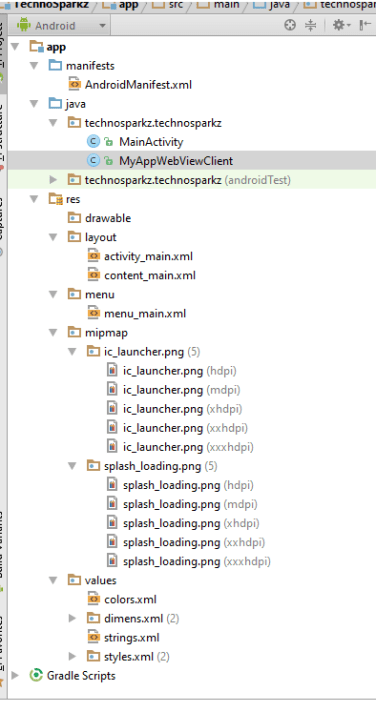
Note: Here, Splash_loading represents your splash screen(The screen which will appear till your website loads). I would soon be uploading the post of how to set a splash screen. Stay tuned till that.

 TechnoSparkz